How do I connect a 3D Scope II Outdoor Camera Using a Cellular Modem?
Learn how to install, connect, and calibrate a 3D Scope II Outdoor people counter using a cellular modem (such as the LT700) when a wired Ethernet connection is not available.
Table of Contents

Overview
You can connect a 3D Scope II Outdoor camera to T.M.A.S. using a cellular modem (such as the Cudy LT700) when a wired Ethernet connection is not available.
This allows the camera to communicate with T.M.A.S. over a cellular data network while receiving Power over Ethernet (PoE).
The example shown in this article uses:
- LT700 cellular modem
- TP-Link PoE injector (provided by SMS)
- Cudy PoE injector
A similar network topology may be used with other cellular modems and routers. However, power and networking requirements vary by manufacturer and model.
Important:
This article uses the LT700 cellular modem as an example because it has been successfully deployed by several SMS customers. SMS Storetraffic does not sell or provide technical support for third-party cellular modems, including the Cudy LT700.
While the general concepts in this article apply to many cellular modem and router models, installation and configuration may vary depending on the manufacturer. For assistance with modem setup, SIM activation, APN configuration, or troubleshooting the cellular connection, please contact your modem manufacturer or cellular service provider.
SMS Support can assist with the installation, calibration, and operation of the 3D Scope II Outdoor camera once network connectivity has been established.
Before You Begin
You'll need:
| Available from SMS: | |
| 3D Scope II Outdoor camera |  |
| TP-Link PoE injector (for 3D Scope II camera) |  |
| Not available from SMS: | |
| Cellular modem (such as the Cudy LT700) |  |
| Active SIM card with a cellular data plan |  |
| Waterproof RJ45 coupler | 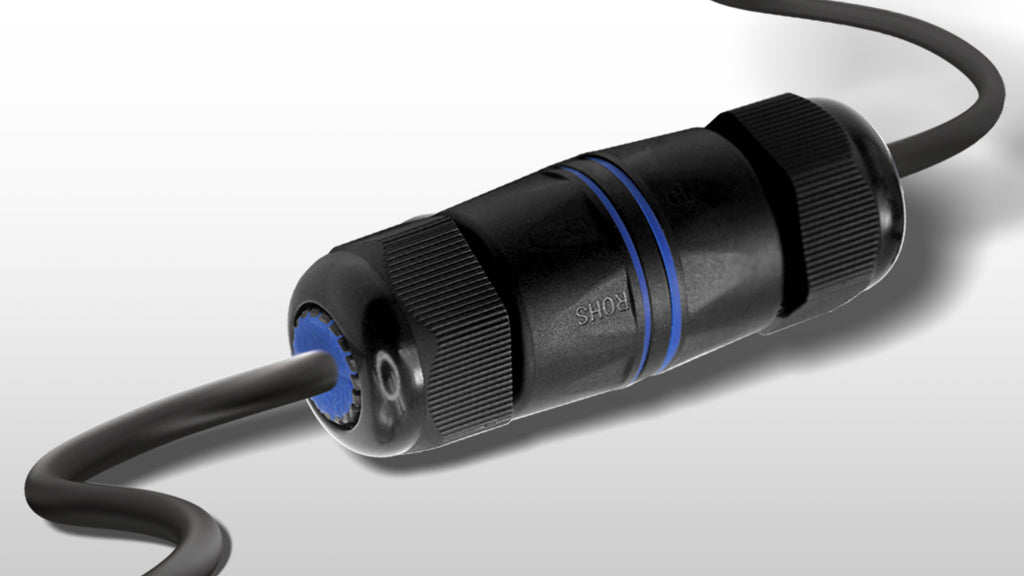 |
| Cudy PoE injector (for Cudy LT700) |  |
| Ethernet cables |  |
| Laptop for camera calibration |  |
Important:
During calibration, your laptop must be connected to the same local network as the camera. The easiest way to accomplish this is by connecting your laptop directly to the cellular modem.
Connection Diagram

Figure 1. Example wiring diagram using a Cudy LT700 cellular modem.
Key components:
- Cudy PoE injector: Supplies power to the LT700 cellular modem.
- LT700: Provides Internet connectivity and acts as the local network for the camera and laptop.
- TP-Link PoE injector: Receives the network connection from the LT700 and supplies both power and data to the 3D Scope II Outdoor camera.
- RJ-45 coupler: Connects the camera cable to the TP-Link PoE injector.
Important:
The laptop shown in the diagram is required only during installation, configuration, and calibration. Without a computer connected to the same local network as the camera, neither you nor SMS Support can access the camera for configuration or calibration. Once setup is complete, the laptop can be disconnected.
Installation Procedure
Step 1 – Install the SIM Card
Before applying power to the cellular modem, install the SIM card according to the modem manufacturer's instructions.
Important:
Install the SIM card before powering on the cellular modem. Most SIM cards are not designed to be inserted or removed while the modem is powered, as this may damage the SIM card or prevent it from being detected.
Step 2 – Connect the Cudy PoE Injector to the Cellular Modem
⚠️IMPORTANT
The LT700 used in this example is designed to receive power through its Ethernet port using Power over Ethernet (PoE). Do not connect the powered output of a PoE injector to a cellular modem unless the manufacturer specifically states that the modem supports PoE input. Connecting PoE to a device that is not designed to accept it may damage the hardware.
The example shown in this article uses a Cudy PoE injector to power the LT700 cellular modem.
Hardware compatibility is the responsibility of the installer. Before connecting any PoE injector, verify that your cellular modem supports PoE input on its Ethernet port. If it does not, power the modem using the manufacturer's recommended power supply and follow the manufacturer's networking instructions.
Note:
The Cudy PoE injector is a third-party component and is not sold or supplied by SMS Storetraffic. You are responsible for sourcing a compatible injector if following this wiring configuration. Similar PoE injectors from other manufacturers may also be suitable.
Using an Ethernet cable, connect the Power + Data Out port of the Cudy PoE injector to the Ethernet port of the cellular modem.
Connect power to the Cudy PoE injector to power on the modem.
Step 3 – Verify Cellular Connectivity
Allow the cellular modem several minutes to start.
Verify that:
- the SIM card is recognized,
- the modem has cellular signal,
- the modem has Internet connectivity.
Do not continue with the installation until the cellular modem has successfully connected to the Internet. The 3D Scope II Outdoor camera requires network connectivity to communicate with T.M.A.S.
Step 4 – Connect the Two PoE Injectors
Using an Ethernet cable, connect the LAN port of the Cudy PoE injector to the LAN In port of the TP-Link PoE injector.
Connect power to the TP-Link PoE injector.
Step 5 – Connect the RJ-45 Coupler
Connect an Ethernet cable from the Power + Data Out port of the TP-Link PoE injector to one side of the RJ-45 coupler.
Note:
SMS recommends using an IP-rated (weatherproof) RJ-45 coupler suitable for outdoor installations to protect the Ethernet connection from moisture and environmental exposure.
Step 6 – Connect the 3D Scope II Outdoor Camera
Connect the Ethernet cable from the 3D Scope II Outdoor camera to the opposite side of the RJ-45 coupler.
The TP-Link PoE injector supplies both power and network connectivity to the camera through the coupler.
Allow 2–3 minutes for the camera to boot.
Step 7 – Verify Network Connectivity
Open T.M.A.S. and verify that the camera:
- appears online in T.M.A.S.,
- is communicating successfully, and
- does not report any connection errors.
More information: Equipment Inventory: How to see if a device is communicating with T.M.A.S.
Step 8 – Connect a Computer for Camera Calibration
To calibrate or configure the camera, you must have access to a computer that is connected to the same local network as the 3D Scope II Outdoor camera.
The easiest way to accomplish this is by connecting your laptop directly to the same cellular modem used by the camera, either:
- via the modem's Wi-Fi network, or
- using an Ethernet cable (if supported by the modem).
If you do not know the camera's IP address, see: How do I find the IP address of a 3D Scope II camera?
Important:
The camera is configured through its local IP address using a web browser. If your computer is connected to a different network, it will not be able to reach the camera, even if both devices have Internet access.
Once your computer is connected to the same network, open a web browser, navigate to the camera's IP address, and complete the calibration and configuration process.
Troubleshooting
The camera does not power on
Verify that:
- both PoE injectors are powered,
- all Ethernet cables are fully inserted,
- the camera is connected to the Power + Data Out port of the TP-Link injector.
The camera is powered but does not appear online
Verify that:
- modem has Internet
- SIM active
- all devices finished booting
- modem allows LAN access
- wiring matches diagram
The laptop cannot find the camera during calibration
Verify that:
- the laptop is connected to the same cellular modem as the camera,
- the laptop has received an IP address,
- the camera and laptop are on the same subnet,
- any firewall or VPN software is temporarily disabled if necessary.
The cellular modem has no Internet connection
Check that:
- the SIM card is installed correctly,
- the cellular data plan is active,
- adequate cellular signal is available,
- the APN settings are correct (if required by the carrier).
Frequently Asked Questions
Q: Can I use a different cellular modem?
A: Most cellular modems or routers with an Ethernet LAN connection can be used, provided they allow the camera and your laptop to communicate on the same local network. Power and wiring requirements vary by model.
Q: Can I use this wiring diagram with any cellular modem?
A: No. This article illustrates a configuration using the LT700, which supports Power over Ethernet (PoE) input. Before using this wiring method with another modem or router, verify that it is designed to accept PoE power through its Ethernet port. If your modem does not support PoE input, power it using the manufacturer's recommended power supply and adapt the network wiring accordingly.
Q: Does every cellular modem require two PoE injectors?
A: No. The LT700 configuration shown in this article uses two PoE injectors. Other cellular routers may require only one PoE injector—or none at all if they provide compatible PoE output.
Q: Can I connect the camera directly to the cellular modem?
A: Not in the LT700 configuration shown here. The 3D Scope II Outdoor camera requires Power over Ethernet (PoE), so a compatible PoE injector or PoE switch is required unless your cellular router provides suitable PoE output.
Q: Does the cellular modem need an Internet connection?
A: Yes. The modem must have an active cellular data connection so the camera can communicate with T.M.A.S.
Q: Why is my laptop connected to the cellular modem?
A: The laptop is only required during installation and calibration. It allows you—or SMS Support during a remote session—to access the camera's local IP address. Once calibration is complete, the laptop can be disconnected.
Q: Can SMS Support configure my cellular modem?
A: No. SMS Support can assist with the installation, calibration, and operation of the 3D Scope II camera once network connectivity has been established. Configuration of the cellular modem, SIM card, APN settings, and Internet connectivity is the responsibility of the modem manufacturer or cellular service provider.
Q: Can I use a PoE switch instead of the TP-Link injector?
A: Yes. Any standards-compliant PoE switch capable of supplying the required power to the 3D Scope II Outdoor camera may be used instead of the TP-Link PoE injector. Ensure the switch meets the camera's PoE requirements before installation.
Q: Can I calibrate the camera from another network?
A: Not directly. The computer used during the calibration session must be connected to the same local network (LAN) as the 3D Scope II Outdoor camera. This allows the camera's local IP address to be accessed through a web browser.
If calibration is being performed remotely by SMS Support, you will need someone on-site to:
- Connect a computer to the same network as the camera.
- Join the remote support session (for example, using TeamViewer, AnyDesk, or Microsoft Quick Assist).
- Open a web browser and navigate to the camera's local IP address.
Once connected to the on-site computer, SMS Support can log in to the camera and perform the calibration remotely.
NOTE:
Simply having Internet access to the site is not sufficient. If there is no computer connected to the same local network as the camera, the camera's local IP address cannot be reached, and SMS Support will not be able to access or calibrate the device.