Exporting a traffic file from T.M.A.S.
T.M.A.S. Administration / Configure / Manage Locations / Import - Export
Table of Contents
NOTE: Only users with access to the “Administration” section in T.M.A.S. will be able to access the configurations below
Why is it useful? | |
 | |
T.M.A.S. provides the ability to easily configure a flat file for traffic and schedule an export to an SMS supplied FTP site or your own custom FTP site. Thus enabling your to integrate traffic into other BI applications |
|
Examples of applications that import traffic files from T.M.A.S. | |
 |
 |
 |
 |
Export sample files | ||
|
Export Type *Custom exports available on demand and subject to additional fees which will be quoted. |
Columns Layout *Check T.M.A.S. for other format availability. |
File Example by interval *30min and daily also available, click interval to download below. |
TRAFFIC_DAILY |
Store ID, Label, Date (YYYY-MM-DD), Hour (HH:MM:SS.SSS), Traffic |
|
SENSOR_TRAFFIC |
Date (MM-DD-YYYY), Day or Week (Monday-Sunday), Hour (HH:MM), Store ID, Device Label, Sensor Label, Traffic |
|
How to create an export | |||
| Administration > Manage Locations > Import / Export Data > Add | |||
|


|
|
||
| General Information | |||
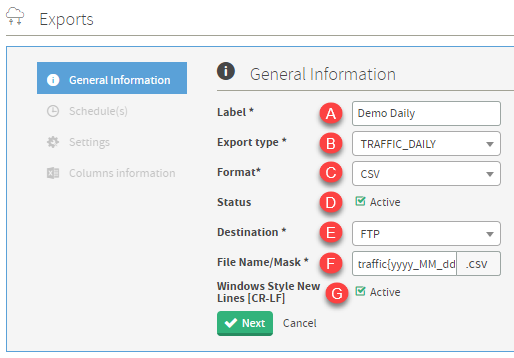 |
6. Complete General Information
7. Click Next |
||
| Schedule(s) | |||
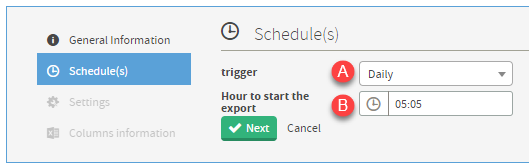 |
8. Set a Schedule
9. Click Next |
||
| Settings | |||
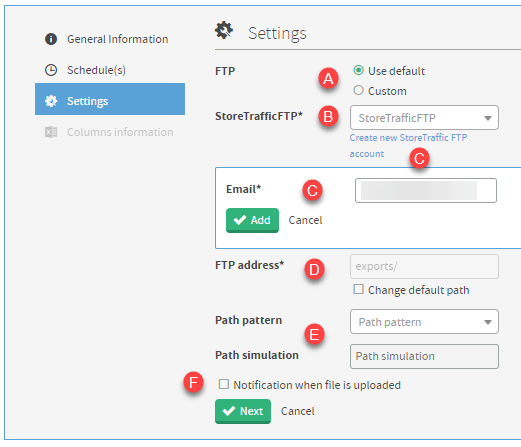 |
10. Configure Settings
|
||
| FTP Using default vs custom | |||
FTP account creationPortal: https://files.smssoftware.net URL: files.smssoftware.net User: E-mail address used for account creation Password: E-mailed from NOTICE@smssoftware.net at account creation. |
FTP USE DEFAULT - (SMS CERBERUS)
|
||
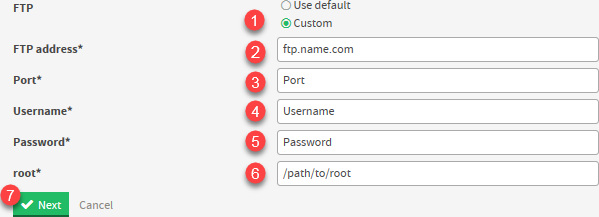
Contact SMS TechsupportCustomers which are looking to use their own custom FTP to upload and download traffic exports files must contact techsupport@storetraffic.com to request whitelisting of the FTP URL for security purposes prior to proceeding with the following steps. *If a custom port is also required as the standards are not in use or blocked, then additional fees may apply.
|
FTP CUSTOM - (USING YOUR OWN PRIVATE FTP)
 |
||
| Columns Information | |||
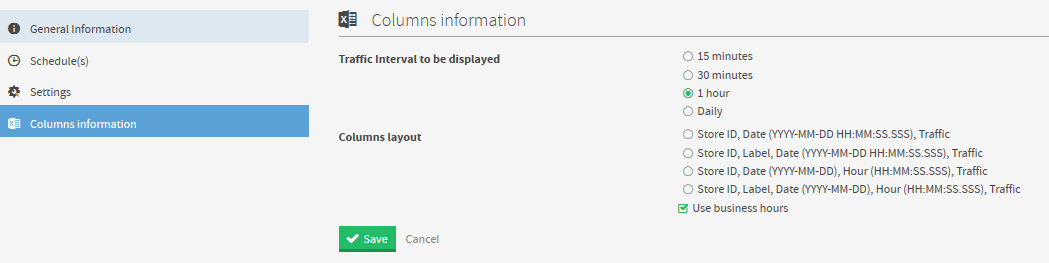 |
|
||
NoteIf set to active prior to saving - A connection test will be performed at the end of the 'add export' setup wizard - if the connection test fails, an error message will be displayed, and the export job will NOT be saved. Set job as inactive to bypass the connection test and save settings. | |||


How to Edit, Delete or Run an export on demand
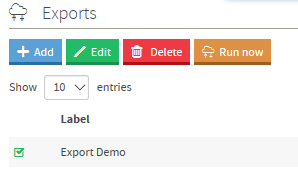 |
|
Other ways of exporting traffic data
SMS can customize exports which will only be configured upon request basis to Techsupport@storetraffic.com
Additional fees may apply based on the complexity of the request charged at an hourly quoted rate.
F.A.Q.
Q: Can sales and transactions be exported too?
A: This export function is for traffic only, to generate a report in an Excel format for sales, transactions, staff,that and traffic data; use the data export report. Click here for more info.
Q: How can I export more than a day of data?
A: The default stock export returns yesterday’s data exclusively.
To get more data, you can:
-
Schedule a report – many offered like the Data Export Report
-
Use of our WebAPI – allows for way more flexibility
- Request for a customization of your current export
Q: Why might a store appear twice in my traffic data export?
A: In some cases, a store may appear more than once in a traffic data export if it is assigned to multiple parent locations in the location hierarchy.
Best practice is to avoid linking the same store at multiple hierarchy levels (e.g., both to the chain and the district).
More info here